

Are you tired of scrolling in the wrong direction? Do you find it frustrating to navigate through documents or web pages when the mouse scroll feels counterintuitive? If so, you’re not alone. Many users prefer to invert their mouse scroll to match their natural instincts, and luckily, it’s a simple adjustment that can greatly enhance your user experience. In this guide, we will explore the step-by-step process of how to invert mouse scroll, enabling you to effortlessly navigate through content with ease and efficiency.
Scrolling has become an essential part of our daily digital interactions, whether we’re browsing the internet, reading documents, or even playing games. However, the default scrolling direction on most devices can sometimes feel unnatural and counterintuitive. The good news is that you can easily change this setting to better suit your preferences. Throughout this article, we will walk you through the various methods to invert mouse scroll, ensuring that you have all the knowledge and tools necessary to make this adjustment on your device. So, let’s dive in and revolutionize the way you scroll!
How to invert mouse scroll:
- Open your computer’s settings.
- Navigate to the “Mouse” or “Mouse & touchpad” section.
- Look for an option called “Scrolling direction” or similar.
- Toggle the option to reverse the scrolling direction.
- Save your changes and exit the settings.
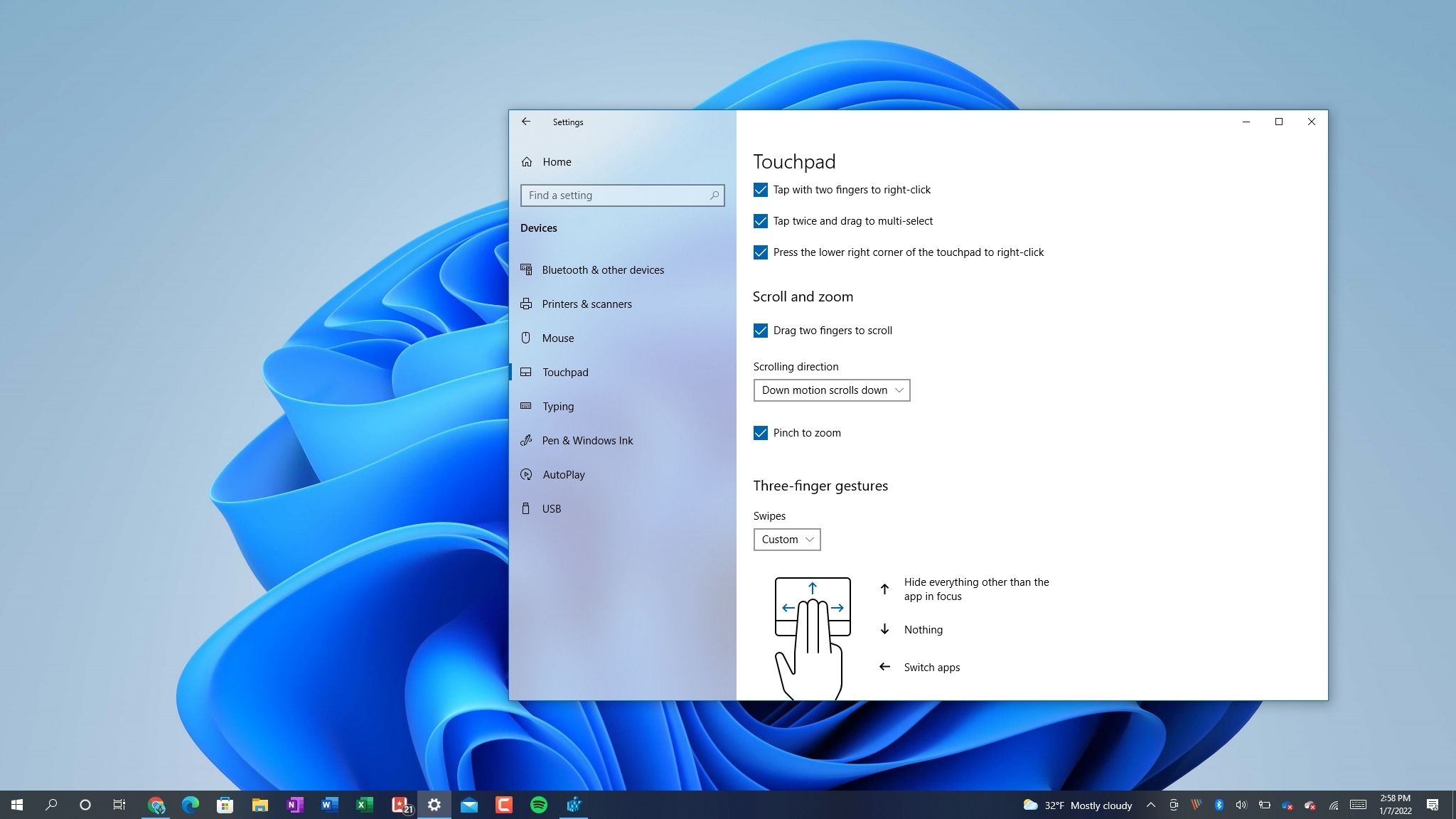
How to Invert Mouse Scroll
Inverting the mouse scroll direction can be a useful customization for users who prefer a different scrolling experience. Whether you want to change it for a specific application or for your entire operating system, this guide will walk you through the step-by-step process. By following these instructions, you can easily invert the mouse scroll and tailor it to your preferences.
Step 1: Accessing Mouse Settings
Firstly, you need to access the mouse settings on your computer. The specific steps may vary depending on your operating system, but generally, you can find the mouse settings in the Control Panel or System Preferences. Look for the section that allows you to customize mouse properties.
Once you have located the mouse settings, click on it to open the configuration window. Here, you will find various options related to the mouse, such as pointer speed, button configuration, and scrolling behavior. To invert the mouse scroll, you need to navigate to the appropriate setting, which is usually labeled as “Scrolling” or “Mouse Wheel.”
Step 2: Inverting Mouse Scroll
After accessing the mouse settings, locate the option that controls the scroll direction. This option is typically presented as a checkbox or a drop-down menu. The default setting is usually set to “Scroll up to move up,” but to invert the scroll, you need to select the opposite option, which is “Scroll up to move down” or something similar.
Once you have found the scroll direction option, check the box or select the appropriate choice to invert the mouse scroll. The changes should take effect immediately, allowing you to scroll in the desired direction. You can test the inverted scroll by scrolling up and down in a document or webpage to ensure that it is functioning as expected.
Step 3: Customizing Additional Settings
Depending on your preferences, you may want to further customize the mouse scroll behavior. In some cases, the mouse settings allow you to adjust the scroll speed, acceleration, or other related parameters. Take some time to explore these additional settings to fine-tune the scrolling experience to your liking.
Once you have made all the desired adjustments, click on the “Apply” or “OK” button to save the changes. The mouse scroll is now inverted, and you can enjoy a different scrolling experience that suits your needs. Keep in mind that these settings may apply system-wide or only to specific applications, depending on your configuration.
Step 4: Reverting Back to Default
If you ever want to revert back to the default scroll direction, you can simply revisit the mouse settings and uncheck the option for inverted scroll or select the original scroll direction. By undoing the changes, the mouse scroll will return to its default behavior.
Remember to click on the “Apply” or “OK” button to save the changes. It is worth noting that the exact steps for reverting back to default may differ slightly from the initial customization process, so consult the mouse settings documentation or search online for specific instructions if needed.
Step 5: Enjoy Your Customized Mouse Scroll
Now that you have successfully inverted the mouse scroll, you can enjoy a personalized scrolling experience that aligns with your preferences. Whether you find it more intuitive or simply prefer the inverted direction, this customization allows you to have greater control over your mouse’s behavior.
Remember that the steps outlined in this guide are general and may vary depending on your operating system or mouse model. Always refer to the specific instructions provided by the manufacturer or consult online resources for more detailed guidance if necessary.
Frequently Asked Questions
Here are some commonly asked questions about how to invert mouse scroll:
Q: How can I invert the mouse scroll direction?
To invert the mouse scroll direction, you can follow these steps:
1. On Windows, go to the Control Panel and open the Mouse settings. On Mac, go to System Preferences and open the Mouse settings.
2. Look for an option called “Scrolling direction” or something similar.
3. Toggle the option to reverse or invert the scroll direction.
4. Click on Apply or Save to confirm the changes.
By following these steps, you should be able to invert the mouse scroll direction on your computer.
Q: Can I invert the mouse scroll direction in specific applications only?
Yes, it is possible to invert the mouse scroll direction in specific applications. Many applications, such as web browsers or video games, have their own settings that allow you to customize the mouse scroll behavior.
1. Open the application in which you want to invert the scroll direction.
2. Look for the settings or preferences menu within the application.
3. Navigate to the mouse or input settings.
4. Find the option to invert the scroll direction and enable it.
5. Save the settings and close the preferences menu.
By following these steps, you should be able to invert the mouse scroll direction specifically for the chosen application.
Q: Are there any third-party software or tools to invert mouse scroll?
Yes, there are third-party software and tools available that can help you invert the mouse scroll direction. These tools provide more advanced options and customization settings beyond what is available in the default system settings.
Some popular third-party tools for inverting mouse scroll include X-Mouse Button Control, AutoHotkey, and SteerMouse. These tools allow you to remap mouse buttons and modify scroll behavior according to your preferences.
Before installing any third-party software, make sure to read reviews, check compatibility with your operating system, and download from trusted sources.
Q: Is it possible to invert the mouse scroll direction on a touchscreen device?
No, inverting the mouse scroll direction is not applicable to touchscreen devices. Touchscreen devices, such as smartphones or tablets, rely on direct touch input rather than mouse scroll functionality.
However, you can modify the scrolling behavior on touchscreen devices by adjusting the touch sensitivity settings or using gestures specific to the device or operating system.
Q: How can I revert back to the default mouse scroll direction?
If you want to revert back to the default mouse scroll direction, you can follow these steps:
1. Open the mouse settings on your computer, either through the Control Panel (on Windows) or System Preferences (on Mac).
2. Locate the option related to scrolling direction.
3. Toggle the option to its original state, usually labeled as “Natural” or “Default”.
4. Click on Apply or Save to confirm the changes.
By following these steps, you should be able to revert back to the default mouse scroll direction on your computer.
How To Reverse The Mouse Scroll Direction In Windows 10
In conclusion, mastering the art of inverting mouse scroll can greatly enhance your computer usage experience. By following the simple steps outlined in this guide, you can easily customize your mouse settings to suit your preferences and needs. Whether you are a gamer looking for a more intuitive control scheme or someone who simply finds inverted scrolling more natural, this skill is a valuable tool to have in your digital arsenal.
Remember, practice makes perfect. Don’t be discouraged if it takes some time to adjust to the inverted scrolling. With patience and persistence, you will soon find yourself effortlessly navigating through web pages, documents, and applications with ease. So go ahead, give it a try and take control of your scrolling experience. Your customized mouse settings await, ready to transform the way you interact with your computer.

