

Are you a Windows 11 user who’s been mesmerized by the sleek design and innovative features of the Apple Magic Mouse? Do you find yourself yearning to experience the smooth and effortless navigation that this iconic peripheral offers? Well, you’re in luck! In this guide, we will unveil the secrets to connecting your Magic Mouse to your Windows 11 device. Whether you’re a professional looking to enhance your productivity or a tech enthusiast who simply appreciates the best of both worlds, this step-by-step tutorial will unlock the power of the Magic Mouse on your Windows 11 system.
While the Magic Mouse was originally designed for Apple devices, it’s now possible to seamlessly integrate it with Windows 11, providing you with a seamless and intuitive user experience. Forget about the frustrations of using a traditional mouse and embrace the convenience and elegance that the Magic Mouse brings. So, without further ado, let’s dive into the world of sorcery and technology as we demystify the process of connecting the Magic Mouse to your Windows 11 operating system. Get ready to elevate your productivity and enjoy a touch of enchantment in your daily computing tasks!
How to Connect Magic Mouse to Windows 11:
- Ensure that your Magic Mouse is turned on and in “Discoverable” mode.
- On your Windows 11 PC, go to “Settings” and click on “Devices”.
- Click on “Bluetooth & other devices” and turn on Bluetooth if it’s not already enabled.
- Under “Mouse, keyboard, & pen”, click on “Add a device”.
- Your Magic Mouse should appear in the list of available devices. Click on it to start the pairing process.
- Follow the on-screen instructions to complete the pairing process.
- Once connected, your Magic Mouse should work seamlessly with Windows 11.

How to Connect Magic Mouse to Windows 11
Introduction
Welcome to this step-by-step guide on how to connect your Magic Mouse to Windows 11. The Magic Mouse is a sleek and innovative wireless mouse designed by Apple, but it can also be used with Windows operating systems. In this article, we will walk you through the process of connecting the Magic Mouse to your Windows 11 computer.
Requirements
Before we begin, make sure you have the following:
- A Magic Mouse
- A Windows 11 computer or laptop
- A USB port or Bluetooth capability on your Windows 11 device
Step 1: Enable Bluetooth on Windows 11
The first step is to ensure that Bluetooth is enabled on your Windows 11 computer. Here’s how to do it:
- Click on the Start menu and select Settings.
- In the Settings window, click on the Bluetooth & devices option.
- Toggle the Bluetooth switch to the ON position.
Once Bluetooth is enabled, your computer will start searching for nearby Bluetooth devices.
Step 2: Put Magic Mouse in Pairing Mode
Next, we need to put your Magic Mouse in pairing mode so that it can be discovered by your Windows 11 computer. Follow these steps:
- Make sure your Magic Mouse is turned on and has batteries.
- Press and hold the power button on the underside of the mouse until the LED light on the top starts blinking.
Your Magic Mouse is now in pairing mode and ready to be connected to your Windows 11 computer.
Step 3: Connect Magic Mouse to Windows 11
Now that Bluetooth is enabled on your Windows 11 computer and your Magic Mouse is in pairing mode, let’s connect them:
- On your Windows 11 computer, go back to the Bluetooth & devices settings.
- Click on the “Add Bluetooth or other device” option.
- In the Add a device window, select Bluetooth.
- Your computer will start searching for nearby Bluetooth devices. When you see “Magic Mouse” or a similar name in the list of available devices, click on it.
- Windows 11 will now connect to your Magic Mouse. Once the connection is successful, you will see a notification on your screen.
Congratulations! You have successfully connected your Magic Mouse to Windows 11. You can now enjoy using your Magic Mouse for smooth navigation and precise control on your Windows 11 computer.
Frequently Asked Questions
Here are some commonly asked questions about how to connect a Magic Mouse to Windows 11:
Q: Can I use a Magic Mouse with Windows 11?
A: Yes, you can use a Magic Mouse with Windows 11. However, please note that the Magic Mouse was originally designed for Apple devices and may not have full functionality on Windows 11. Some features, such as multi-touch gestures, may not work as expected.
To connect a Magic Mouse to Windows 11, you will need to enable Bluetooth on your PC. Then, go to the Bluetooth settings and put your Magic Mouse in pairing mode. Once the mouse is discovered, click on it to connect. Windows 11 will automatically install the necessary drivers for the Magic Mouse.
Q: How do I enable Bluetooth on Windows 11?
A: To enable Bluetooth on Windows 11, follow these steps:
1. Click on the Start button and open the Settings app.
2. Go to the “Devices” section.
3. In the left sidebar, click on “Bluetooth & devices.”
4. Toggle the “Bluetooth” switch to the On position.
Once Bluetooth is enabled, you should be able to connect your Magic Mouse or any other Bluetooth device to your Windows 11 PC.
Q: How do I put my Magic Mouse in pairing mode?
A: To put your Magic Mouse in pairing mode, follow these steps:
1. Make sure your Magic Mouse is turned on and has batteries.
2. On the bottom of the mouse, you will find a power button. Press and hold this button until the LED light on the top of the mouse starts flashing.
3. The Magic Mouse is now in pairing mode and ready to be discovered by your Windows 11 PC.
Once the mouse is in pairing mode, you can proceed to connect it to your Windows 11 PC using the Bluetooth settings.
Q: Why is my Magic Mouse not connecting to Windows 11?
A: If your Magic Mouse is not connecting to Windows 11, there could be a few reasons for this:
1. Make sure Bluetooth is enabled on your PC. You can check this by going to the Settings app and navigating to the “Bluetooth & devices” section.
2. Ensure that your Magic Mouse is in pairing mode. Follow the steps mentioned earlier to put the mouse in pairing mode.
3. Check if the batteries in your Magic Mouse are working properly. If the batteries are low or empty, replace them with new ones.
4. Restart your Windows 11 PC and try connecting the Magic Mouse again.
If none of these steps work, there may be compatibility issues between the Magic Mouse and Windows 11, and it may not be fully supported.
Q: Can I customize the settings of my Magic Mouse on Windows 11?
A: Yes, you can customize the settings of your Magic Mouse on Windows 11 to some extent. However, please note that not all features of the Magic Mouse may be customizable on a Windows PC.
To customize the settings, go to the Settings app on your Windows 11 PC and navigate to the “Bluetooth & devices” section. Click on your Magic Mouse to access the settings. Here, you may be able to adjust the tracking speed, scroll direction, and button assignments.
Keep in mind that the customization options may vary depending on the version of Windows 11 and the compatibility of the Magic Mouse drivers.
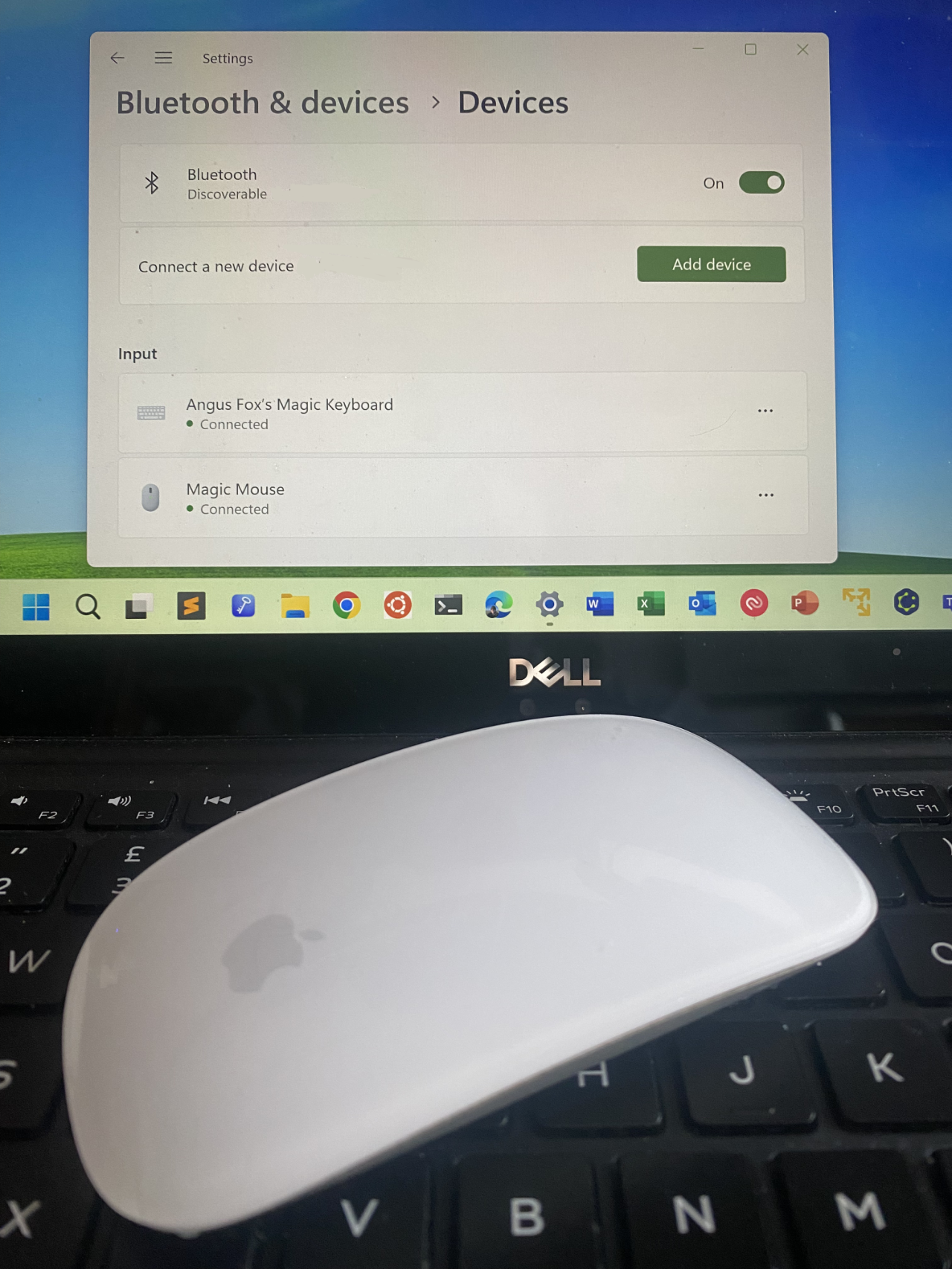
How to Connect Magic Mouse to Windows 10 ?! Easy Tutorial
In conclusion, connecting a Magic Mouse to Windows 11 is a relatively simple process that can greatly enhance your computing experience. By following the step-by-step instructions provided in this guide, you can seamlessly integrate this sleek and responsive device into your Windows 11 setup. Whether you are a creative professional looking to navigate through design software with precision or simply seeking a more comfortable and efficient way to interact with your computer, the Magic Mouse offers a delightful solution.
Now that you have the knowledge and tools at your disposal, take a moment to connect your Magic Mouse to Windows 11 and unlock a world of possibilities. Embrace the seamless scrolling, multi-touch gestures, and sleek design that this Apple innovation brings to the Windows platform. With a bit of patience and a few simple steps, you can seamlessly pair your Magic Mouse with Windows 11 and elevate your productivity and enjoyment of your computer experience. So go ahead, connect your Magic Mouse and embark on a journey of effortless navigation and enhanced functionality.

