

Are you tired of accidentally moving your cursor while typing? Do you find it frustrating when your touchpad interferes with your mouse movements? If so, you’re not alone. Many computer users face this issue and are constantly seeking ways to disable their touchpad when a mouse is connected. In this article, we will guide you through the steps to effectively disable your touchpad and regain control of your cursor.
The touchpad can be a convenient feature for laptop users, but it can also be a source of annoyance when it interferes with your external mouse. Fortunately, there are simple and effective ways to solve this problem. By disabling your touchpad when a mouse is connected, you can eliminate those accidental cursor movements and maintain a seamless experience while using your computer. In the following paragraphs, we will explore different methods to achieve this, catering to various operating systems, so you can find the solution that works best for you. Get ready to reclaim control over your cursor and optimize your productivity!
How to Disable Touchpad When Mouse is Connected:
- Open the Control Panel on your computer.
- Click on “Hardware and Sound” and then “Devices and Printers”.
- Locate your mouse in the list of devices and right-click on it.
- Select “Mouse Settings” or “Mouse Properties”.
- In the new window, go to the “Touchpad” tab.
- Check the option that says “Disable internal pointing device when external USB pointing device is attached”.
- Click “Apply” and then “OK” to save the changes.
Introduction
Are you tired of accidentally touching your laptop’s touchpad while using an external mouse? It can be frustrating and disrupt your workflow. Fortunately, there is a way to disable the touchpad when a mouse is connected. In this article, we will guide you through the step-by-step process of disabling the touchpad on various operating systems, ensuring a seamless and uninterrupted experience.
Disabling the Touchpad on Windows
Windows operating system provides several methods to disable the touchpad when a mouse is connected. Here are two commonly used methods:
Method 1: Using Device Manager
1. Press the Windows key + X and select “Device Manager” from the menu.
2. In the Device Manager window, expand the “Mice and other pointing devices” category.
3. Locate your touchpad driver. It is usually named “Synaptics” or “Elan.”
4. Right-click on the touchpad driver and select “Disable device.”
5. A warning message will appear. Click “Yes” to confirm the action.
6. Close the Device Manager window and test if the touchpad is disabled when a mouse is connected.
Method 2: Using Settings
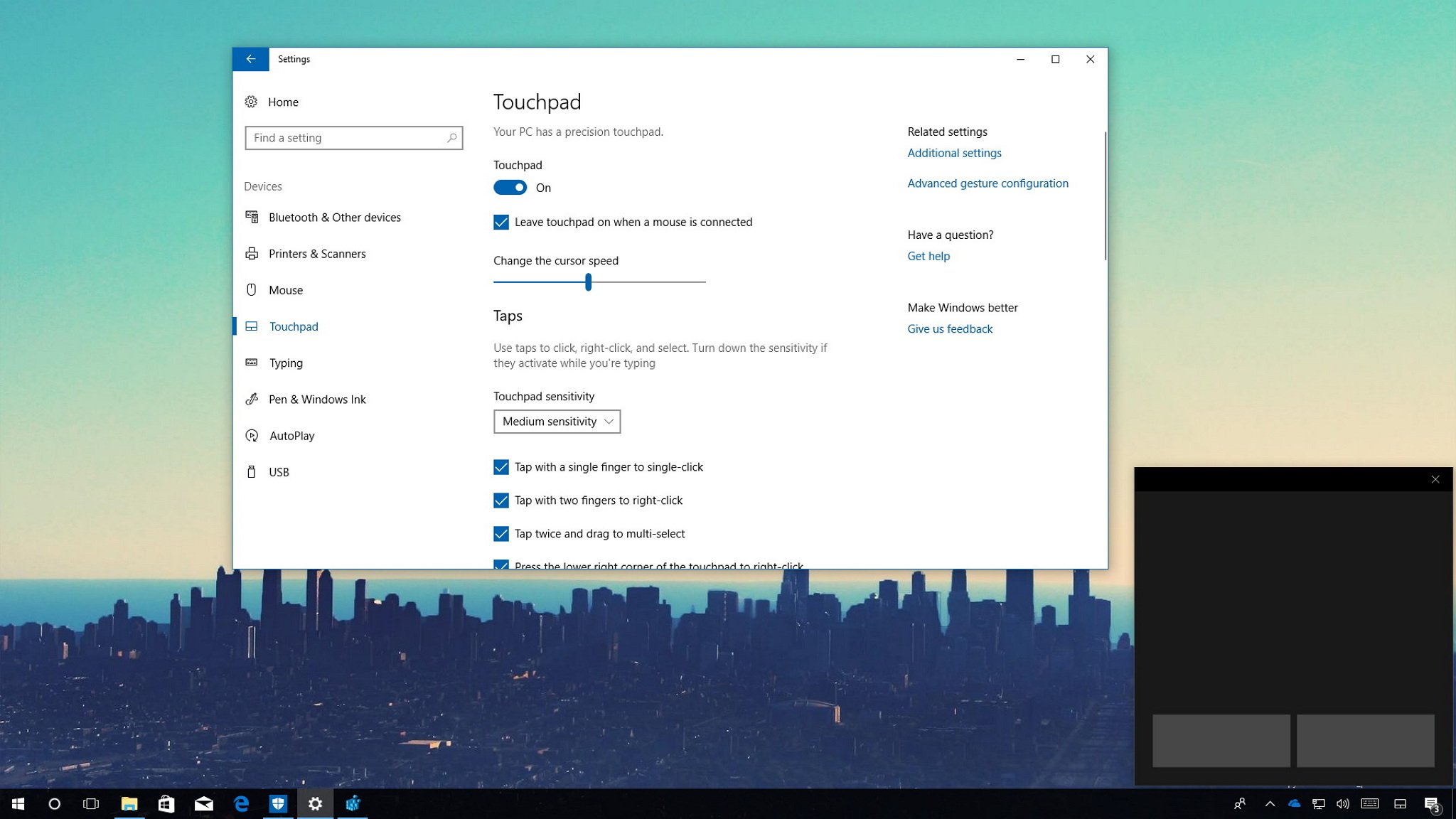
1. Press the Windows key + I to open the Settings app.
2. Click on “Devices” and select “Touchpad” from the left-hand menu.
3. In the Touchpad settings, scroll down to the “Leave touchpad on when a mouse is connected” section.
4. Toggle the switch to the “Off” position.
5. Close the Settings app and verify if the touchpad is disabled when a mouse is connected.
Disabling the Touchpad on macOS
Mac users can easily disable the touchpad when a mouse is connected by following these steps:
Method 1: Using System Preferences
1. Click on the Apple menu in the top-left corner of the screen and select “System Preferences.”
2. In the System Preferences window, click on “Accessibility.”
3. Select “Mouse & Trackpad” from the left-hand menu.
4. Check the box next to “Ignore built-in trackpad when mouse or wireless trackpad is present.”
5. Close the System Preferences window and test if the touchpad is disabled when a mouse is connected.
Method 2: Using Terminal
1. Open the Terminal app by searching for it in Spotlight or navigating to Applications > Utilities > Terminal.
2. Type the following command and press Enter: defaults write com.apple.AppleMultitouchTrackpad MouseDownCoast
3. Restart your Mac to apply the changes.
4. After restarting, check if the touchpad is disabled when a mouse is connected.
By following these simple steps, you can easily disable the touchpad when a mouse is connected, ensuring a more efficient and enjoyable computing experience. Remember, if you ever want to re-enable the touchpad, simply reverse the steps mentioned above. Happy computing!
Frequently Asked Questions
In this section, you will find answers to commonly asked questions about how to disable the touchpad when a mouse is connected.
Question 1: How can I disable the touchpad when a mouse is connected?
Answer: To disable the touchpad when a mouse is connected, you can follow these steps:
1. Open the Control Panel on your computer by searching for it in the Start menu.
2. In the Control Panel, click on the “Hardware and Sound” option.
3. Under the “Devices and Printers” section, click on “Mouse”.
4. In the Mouse Properties window, go to the “Device Settings” or “Touchpad” tab.
5. Look for an option that allows you to disable the touchpad when a mouse is connected. This option may vary depending on your computer’s manufacturer and the touchpad drivers installed.
6. Check the box or toggle the switch to enable the option to disable the touchpad when a mouse is connected.
7. Click “Apply” or “OK” to save the changes.
Question 2: Can I disable the touchpad without accessing the Control Panel?
Answer: Yes, you can also disable the touchpad without accessing the Control Panel by using keyboard shortcuts. Most laptops have a dedicated touchpad enable/disable button or a combination of keys that can be pressed to toggle the touchpad on and off. Look for a touchpad icon on one of the function keys (F1-F12) or a combination of the “Fn” key and a function key. Pressing the appropriate key combination will disable or enable the touchpad.
Question 3: Why would I want to disable the touchpad when a mouse is connected?
Answer: Disabling the touchpad when a mouse is connected can be beneficial for several reasons. Firstly, it prevents accidental cursor movement when you are typing or performing tasks with the mouse. This can help improve productivity and reduce frustration. Secondly, it allows you to solely rely on the mouse for navigation, which can be more comfortable and efficient for some users. Lastly, disabling the touchpad can also conserve battery life on laptops, as the touchpad consumes power even when not in use.
Question 4: Will disabling the touchpad affect the functionality of the mouse?
Answer: No, disabling the touchpad will not affect the functionality of the mouse. Once the touchpad is disabled, the mouse will function as usual. You can move the cursor, click, and perform all the regular mouse actions without any issues. Disabling the touchpad only prevents it from registering any input, ensuring that your mouse movements are not interfered with.
Question 5: How can I re-enable the touchpad if it has been disabled?
Answer: If you have disabled the touchpad and want to re-enable it, you can follow these steps:
1. Open the Control Panel on your computer.
2. Navigate to the “Mouse” settings as mentioned in Question 1.
3. In the Mouse Properties window, go to the “Device Settings” or “Touchpad” tab.
4. Uncheck the box or toggle the switch to disable the option that disables the touchpad when a mouse is connected.
5. Click “Apply” or “OK” to save the changes.
After re-enabling the touchpad, it will function alongside the connected mouse.
In conclusion, learning how to disable the touchpad when a mouse is connected can greatly enhance your productivity and overall user experience. By following the simple steps outlined in this guide, you can avoid accidental cursor movements and clicks that often occur when your hand brushes against the touchpad. This will allow you to navigate through your work seamlessly and efficiently without any interruptions or frustrations.
Moreover, disabling the touchpad when a mouse is connected can also help prolong the lifespan of your device. By preventing unnecessary touchpad usage, you can reduce wear and tear on the touchpad itself, ensuring its longevity and optimal functionality. Additionally, this feature can also conserve battery life, as the touchpad will no longer be active when not in use.
In conclusion, taking the time to disable the touchpad when a mouse is connected is a small but valuable step towards improving your computing experience. It provides you with greater control and precision, reduces the risk of accidental input, and can even extend the lifespan of your device. So, why not give it a try and enjoy a smoother and more efficient workflow?

