

In today’s fast-paced digital world, smartphones have become an integral part of our lives. With their sleek designs and advanced features, they have revolutionized the way we communicate, work, and entertain ourselves. One of the most popular smartphones in the market is the iPhone, known for its user-friendly interface and seamless performance. However, for those who are accustomed to using a traditional mouse on their computers, navigating through the iPhone’s touch screen can sometimes be a bit challenging. But fear not! In this guide, we will explore the various ways to use a mouse on an iPhone, enabling you to effortlessly navigate through your device with precision and ease.
Picture this: you’re sitting at your desk, working on an important document, and suddenly you receive a text message on your iPhone. Rather than reaching out to your phone and potentially disrupting your workflow, wouldn’t it be convenient to simply control your iPhone using a mouse? Well, the good news is that it’s possible! With the right tools and a few simple steps, you can connect a mouse to your iPhone and enjoy a smoother, more efficient experience. Whether you’re a productivity enthusiast, a gaming aficionado, or simply someone who prefers the familiarity of a mouse, this guide will equip you with the knowledge to make the most out of your iPhone by harnessing the power of a mouse. So, let’s dive in and discover the world of mouse compatibility on your iPhone, opening doors to a whole new level of convenience and control.
How to Use Mouse on iPhone:
- Connect a compatible Bluetooth mouse to your iPhone.
- Go to “Settings” on your iPhone.
- Select “Accessibility” and then “Touch.”
- Enable “AssistiveTouch.”
- Tap on “Devices” and choose your connected mouse.
- You can now use your mouse to navigate and interact with your iPhone.
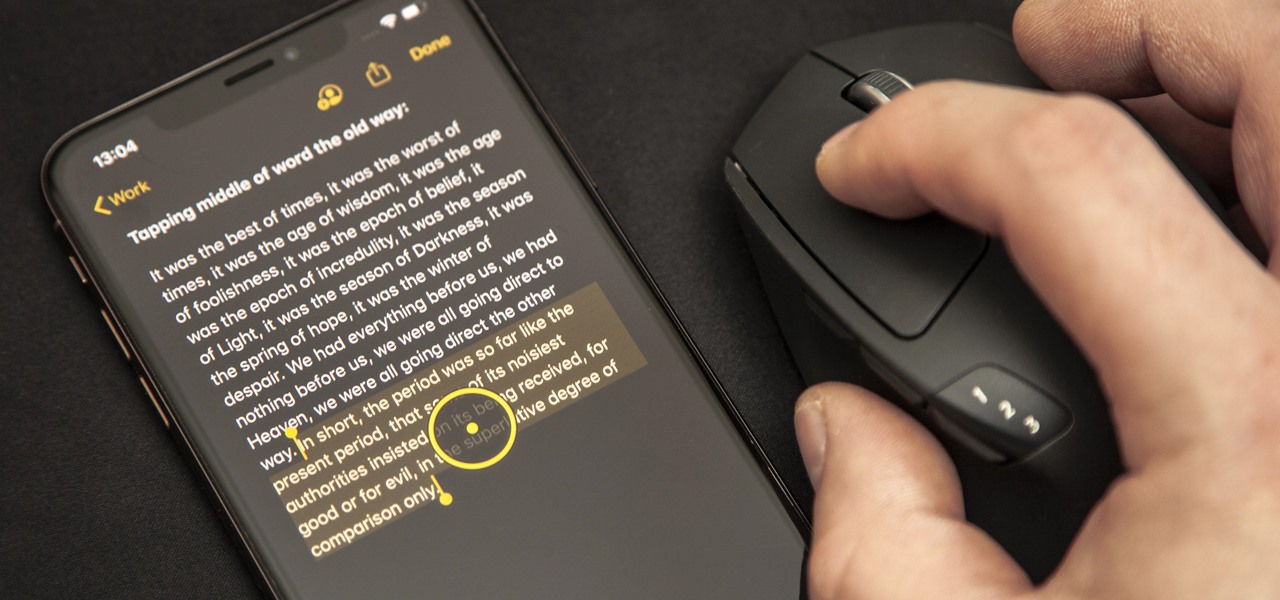
How to Use a Mouse on iPhone
In today’s digital age, our smartphones have become powerful tools that can handle various tasks previously reserved for computers. One such task is using a mouse on an iPhone. While iPhones are primarily designed for touch interaction, the ability to connect a mouse can greatly enhance productivity and ease of use. In this article, we will guide you through the step-by-step process of using a mouse on your iPhone, providing you with valuable insights and tips along the way.
Step 1: Check Compatibility and Requirements
Before you begin using a mouse on your iPhone, it is essential to ensure that your device is compatible. Currently, iPhones running iOS 13 or later support mouse connectivity. Additionally, you will need a compatible mouse that can connect either via Bluetooth or USB. Most wireless mice designed for computers can be used with iPhones as well.
Once you have confirmed compatibility, make sure your iPhone is updated to the latest version of iOS. Software updates often include bug fixes and improvements, ensuring a smoother experience when using a mouse. To update your iPhone, go to Settings > General > Software Update and follow the on-screen instructions.
Step 2: Enable AssistiveTouch
To use a mouse on your iPhone, you need to enable AssistiveTouch, a feature that provides an on-screen cursor and additional touch gestures. To enable AssistiveTouch, go to Settings > Accessibility > Touch > AssistiveTouch. Toggle the switch to enable it. You will now see a small circle on your screen, indicating that AssistiveTouch is active.
Within the AssistiveTouch settings, you can customize various aspects of the on-screen cursor, such as its size and opacity. Feel free to explore these options and adjust them to your preference.
Step 3: Connect and Pair Your Mouse
After enabling AssistiveTouch, it’s time to connect and pair your mouse with your iPhone. If you’re using a Bluetooth mouse, ensure that it is in pairing mode. On your iPhone, go to Settings > Bluetooth and toggle it on. Your mouse should appear in the list of available devices. Tap on the mouse’s name to initiate the pairing process.
If you’re using a USB mouse, you will need an adapter to connect it to your iPhone. Apple offers a Lightning to USB Camera Adapter that allows you to connect various USB devices, including mice. Once your mouse is connected, your iPhone should automatically detect it.
Step 4: Customize Mouse Settings
With your mouse successfully connected, you can now customize its settings to suit your preferences. Go to Settings > Accessibility > Touch > AssistiveTouch > Devices. Tap on the name of your mouse to access its settings. Here, you can adjust the tracking speed, button configurations, and other mouse-specific options.
Take some time to experiment with these settings and find the combination that feels most comfortable for you. Everyone’s preferences are different, so don’t hesitate to fine-tune the settings until you achieve the desired experience.
Step 5: Enjoy Using Your Mouse on iPhone
Now that you have completed all the necessary steps, you can start enjoying the benefits of using a mouse on your iPhone. Move the cursor around the screen by moving your mouse, and click or tap to interact with various elements and apps. You will find that using a mouse provides precise control and can significantly improve your efficiency when navigating through your iPhone’s interface.
Remember, using a mouse on an iPhone is not limited to just basic navigation. Many apps, such as photo editing or document creation apps, offer additional features and shortcuts when using a mouse. Explore these possibilities and take advantage of the enhanced functionality that a mouse brings to your iPhone experience.
Frequently Asked Questions
Here are some commonly asked questions about how to use a mouse on an iPhone:
Question 1: Can I use a mouse with my iPhone?
Yes, you can use a mouse with your iPhone by enabling the AssistiveTouch feature. AssistiveTouch is designed to assist users with physical disabilities, but it can also be used to connect a mouse to your iPhone. To enable AssistiveTouch, go to Settings > Accessibility > Touch > AssistiveTouch, and toggle the switch to enable it.
To connect a mouse, you will need a compatible Bluetooth mouse or a USB mouse with a Lightning to USB adapter. Once AssistiveTouch is enabled, you can connect your mouse by going to Settings > Accessibility > Touch > AssistiveTouch > Pointing Devices > Bluetooth Devices or USB Devices, depending on the type of mouse you have.
Question 2: How do I use a mouse on my iPhone?
Once you have connected your mouse to your iPhone, you can use it just like you would on a computer. The mouse cursor will appear on your iPhone’s screen, and you can move it by moving the mouse. Left-clicking on the mouse will perform the equivalent of tapping on the screen, while right-clicking will bring up additional options, similar to a long press on the screen.
You can also use scroll wheels on your mouse to scroll through webpages, documents, and other content on your iPhone. Additionally, some mice may have additional buttons or features that can be customized through the Accessibility settings on your iPhone.
Question 3: Can I use a wired mouse with my iPhone?
Yes, you can use a wired mouse with your iPhone by using a Lightning to USB adapter. This adapter allows you to connect a USB mouse directly to your iPhone’s Lightning port. Once connected, follow the same steps mentioned earlier to enable AssistiveTouch and connect your mouse. Keep in mind that the Lightning to USB adapter may need to be purchased separately.
It’s important to note that not all USB mice may be compatible with the iPhone, so make sure to check for compatibility before purchasing or using a wired mouse with your device.
Question 4: Can I use a wireless mouse with my iPhone?
Yes, you can use a wireless mouse with your iPhone by connecting it via Bluetooth. To connect a wireless mouse, make sure it is in pairing mode and then go to Settings > Accessibility > Touch > AssistiveTouch > Pointing Devices > Bluetooth Devices. Your iPhone will search for available Bluetooth devices, and you can select your mouse from the list to connect it. Follow any additional on-screen instructions, if required.
Keep in mind that the specific steps to connect a Bluetooth mouse may vary depending on the brand and model. Refer to the manufacturer’s instructions for detailed guidance on connecting your specific wireless mouse to your iPhone.
Question 5: Can I use a mouse to play games on my iPhone?
While using a mouse on your iPhone can be helpful for navigating and performing tasks, it may not be fully supported in all apps, including games. Many games are optimized for touch screen controls and may not have built-in support for mouse input.
However, some games do offer mouse and keyboard support, especially those that are also available on other platforms like Mac or iPad. If a game supports mouse input, you can use the mouse to control the gameplay, just like you would on a computer. Check the app’s documentation or contact the developer to find out if the game you want to play supports mouse input on iPhone.
In conclusion, mastering the art of using a mouse on an iPhone opens up a world of possibilities for users seeking more precise control and efficiency. While the iPhone was initially designed with touch screen navigation in mind, the ability to connect a mouse to the device provides an alternative method that can be particularly useful in certain scenarios. By following the simple steps outlined in this guide, users can seamlessly pair their mouse with their iPhone and start enjoying the benefits of enhanced control and navigation.
Whether it’s editing documents, browsing the web, or playing games, using a mouse on an iPhone allows for a more comfortable and accurate experience. The ability to right-click, scroll effortlessly, and perform precise actions enhances productivity and makes tasks more enjoyable. Furthermore, the accessibility options offered by connecting a mouse can greatly benefit individuals with certain motor impairments or those who simply prefer a more traditional input method. With the knowledge gained from this guide, users can confidently navigate their iPhone with a mouse, opening up a whole new world of convenience and possibilities.

