

Is your mouse cursor speed suddenly slow? Don’t worry, we’ve got you covered!
Imagine this: you’re working on an urgent project or playing your favorite game, and suddenly, your mouse cursor starts moving sluggishly. It can be frustrating, right? Well, fear not! In this article, we’ll delve into why your mouse cursor speed might have suddenly become slow and discuss some simple solutions to get it back up to speed.
So, if you’re ready to tackle this annoying issue and regain control of your cursor, let’s dive in!
If you’re experiencing a sudden decrease in mouse cursor speed, there are a few potential solutions you can try. Firstly, check your mouse settings and adjust the cursor speed. Secondly, update your mouse drivers to ensure they’re up to date. Additionally, try cleaning your mouse pad or using a different surface. Lastly, restarting your computer may also help resolve the issue. Give these steps a try to improve your mouse cursor speed!
Mouse Cursor Speed Suddenly Slow
Have you ever experienced the frustration of having your mouse cursor move at a sluggish pace? It can be incredibly annoying, hindering your productivity and causing unnecessary delays. In this in-depth article, we will explore the possible reasons behind a sudden slowdown in mouse cursor speed and provide you with detailed information to help you troubleshoot and resolve this issue. Whether you are using a Windows PC, Mac, or a gaming laptop, we’ve got you covered!
Common Causes of Slow Mouse Cursor Speed
When your mouse cursor suddenly becomes slow, there could be several potential causes. Let’s delve into some of the most common culprits:
1. Driver Issues
Outdated or incompatible mouse drivers can significantly impact the performance of your mouse cursor. It is crucial to ensure that you have the latest drivers installed for your mouse. You can typically find the required drivers on the manufacturer’s website or use the device manager in your operating system to update them. Additionally, try uninstalling and reinstalling the mouse drivers to refresh the settings.
If you are using a gaming mouse or any specialized input device, make sure to check for any specific software or firmware updates provided by the manufacturer. These updates often include performance improvements and bug fixes that can address cursor speed issues.
Remember, keeping your drivers up to date is essential for maintaining optimal performance on your computer.
2. High Mouse Sensitivity Settings
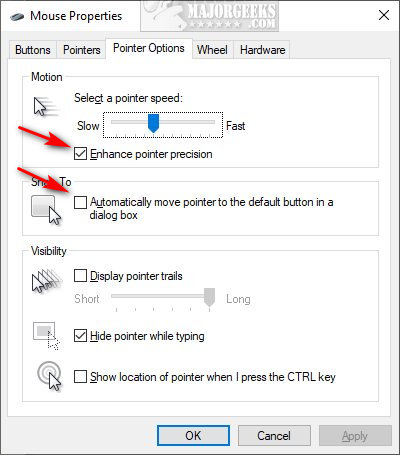
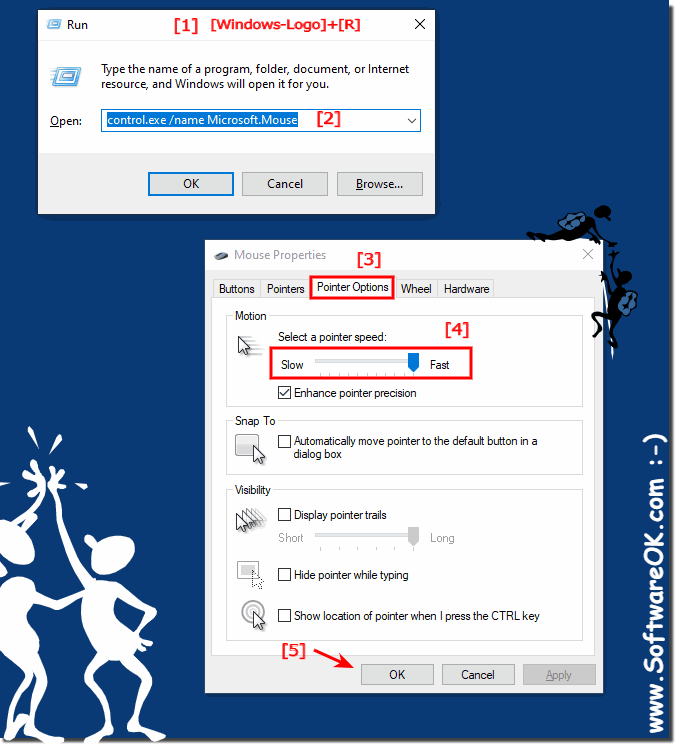
Another common reason for a slow cursor speed is excessively high mouse sensitivity settings. High sensitivity can cause the cursor to move too quickly, making it seem unresponsive. You can adjust the mouse sensitivity settings in the control panel or system preferences of your operating system.
Find the mouse settings and look for an option to customize the pointer speed or sensitivity. Experiment with different settings to find the optimal speed that suits your needs. Keep in mind that the ideal sensitivity may vary depending on your mouse’s DPI (dots per inch) capabilities and personal preference.
Modifying the mouse sensitivity settings can make a noticeable difference in cursor speed and responsiveness.
3. Hardware Issues
A malfunctioning or damaged mouse can also cause a sudden decrease in cursor speed. Check the physical condition of your mouse and ensure that the cable or wireless connection is secure. If you are using a wired mouse, try connecting it to a different USB port to rule out any port-related issues.
If you suspect that the mouse itself is faulty, try using a different mouse on your computer to see if the cursor speed improves. This will help you identify whether the problem lies with the mouse or your system.
Additionally, consider cleaning the mouse’s sensor and surface. Dust, debris, and even fingerprints can interfere with the cursor’s movement, resulting in reduced speed. Use a soft cloth or a cotton swab with a small amount of rubbing alcohol to clean the sensor and the mouse pad (if applicable).
4. Resource-Intensive Programs
Resource-intensive programs, such as video editing software or complex games, can consume a significant portion of your computer’s processing power. This can directly impact the overall performance of your mouse cursor and make it appear slow.
If you notice a sudden slowdown in cursor speed while running such programs, try closing any unnecessary applications and running only the essential ones. You can also check the task manager (Ctrl+Shift+Esc on Windows, Command+Option+Escape on Mac) to identify any processes or applications that are utilizing excessive resources. Ending or disabling these processes can free up system resources and potentially improve cursor speed.
Optimizing and managing your system resources efficiently can prevent the mouse cursor from slowing down due to high CPU or memory usage.
5. System Updates
Operating system updates can often interfere with various drivers and settings, leading to changes in mouse cursor speed. If you have recently installed system updates, it is worth investigating whether they could be the cause of the slow cursor.
Check if any new mouse-related settings have been introduced or if there are any known issues reported by other users after the update. If you suspect that the updates are responsible for the cursor slowdown, consider rolling back the system to a previous restore point or waiting for a subsequent update that addresses the issue.
Regularly checking for and installing updates is crucial for system security and stability, but they can occasionally bring unintended consequences.
6. Mouse Settings and Enhancements
Some mouse settings and enhancements provided by your operating system or third-party software might not be compatible with your system or could be improperly configured, resulting in a slow cursor.
Check the mouse settings in the control panel or system preferences, and disable any unnecessary features or enhancements that you do not use. Experimenting with different settings and configurations can help you identify if any specific option is causing the slowdown.
Similarly, if you are using any third-party mouse utilities or customization software, try adjusting their settings or temporarily disabling them. These utilities can conflict with your operating system’s settings and impact cursor speed.
7. Malware or Virus Infections
Malware or virus infections can significantly impair your system’s performance, including that of your mouse cursor. These malicious programs can run in the background, consuming system resources and causing various issues.
Perform a thorough scan of your computer using a reliable antivirus or antimalware program. Make sure your antivirus software is up to date and capable of detecting the latest threats. If any malware or viruses are detected, follow the recommended actions to quarantine or remove them.
Regularly scanning your computer for malware or viruses is essential for a smooth and secure computing experience.
Additional Tips for Resolving Slow Mouse Cursor Speed
Now that we have explored the common causes of slow mouse cursor speed, let’s delve into some additional tips to help you resolve this frustrating issue:
1. Check Mouse Batteries
If you are using a wireless mouse, ensure that the batteries have sufficient charge. Low battery levels can cause a decrease in cursor speed. Replace the batteries if necessary and restart your computer to see if the cursor speed improves.
2. Adjust Mouse Pad Surface
If you are using a mouse pad, ensure that the surface is clean and suitable for accurate cursor tracking. Consider using a mouse pad specifically designed for gaming or precision work, as these often offer smoother movement and better tracking capabilities.
3. Experiment with Different Mouse Surfaces
Mouse surfaces can have a considerable impact on cursor speed and accuracy. Try using your mouse on different surfaces, such as a mouse pad, a soft cloth, or a hardcover book, to see if the cursor speed improves. Find a surface that provides optimal tracking for your mouse.
Conclusion
In conclusion, a sudden slowdown in mouse cursor speed can be frustrating, but it is usually a solvable issue. By following the troubleshooting steps outlined in this article, you can identify and address the underlying causes of the slow cursor speed. Remember to check for driver updates, adjust mouse sensitivity settings, verify hardware functionality, optimize system resources, and scan for malware or viruses. Keep experimenting with different settings and configurations until you find the optimal cursor speed for your needs. With these tips and techniques, you’ll be back to smoothly navigating your computer screen in no time!
Key Takeaways: Mouse Cursor Speed Suddenly Slow
- The mouse cursor speed may slow down due to a software issue.
- Check if the mouse is connected properly to your computer.
- Try adjusting the mouse speed settings in the control panel.
- Update the mouse driver to the latest version for better performance.
- A cluttered mouse pad or surface can also affect cursor speed.
Frequently Asked Questions
Are you experiencing sudden slow mouse cursor speed? Don’t worry, we’ve got you covered with these helpful Q&A’s.
Why is my mouse cursor suddenly moving slowly?
There can be several reasons for your mouse cursor suddenly slowing down. Firstly, make sure your mouse pad or the surface you’re using the mouse on is clean and free from dust. If the surface is dirty or uneven, it can cause the cursor to move slowly. Additionally, check your mouse settings in the control panel or system preferences. Sometimes, accidentally changing the cursor speed can cause it to slow down. Make sure that the cursor speed is set to your desired preference.
Another possible reason for the slow mouse cursor speed is outdated or faulty mouse drivers. Try updating your mouse drivers to the latest version to ensure smooth performance. In some cases, malware or background processes can also affect the speed of the cursor. Run a comprehensive virus scan and check for any processes that might be using excessive system resources.
How can I fix the slow mouse cursor speed on my computer?
If you’re using a wireless mouse, check the battery level. A low battery can sometimes cause the cursor to move slowly. Replace the batteries if needed. Additionally, try connecting the mouse to a different USB port. In some cases, a faulty USB port can cause the mouse to behave sluggishly. Restarting your computer can also help resolve minor software glitches that could be affecting the cursor speed.
If none of these solutions work, try adjusting the mouse acceleration settings. Increasing the mouse acceleration can make the cursor move faster, while decreasing it can make it move slower. Experiment with different acceleration settings until you find the one that suits your needs. If all else fails, consider testing the mouse on a different computer. If it works fine on another computer, it might be time to replace your mouse.
Could a software update have caused my mouse cursor speed to slow down?
Yes, a software update can sometimes impact the mouse cursor speed. Updates to operating systems or mouse drivers can sometimes change the default settings and affect the cursor speed. If you recently installed any updates, try reverting the changes or adjusting the cursor settings manually to match your preferred speed.
Additionally, some applications or programs running in the background can also affect the mouse cursor speed. Check the Task Manager (Windows) or Activity Monitor (Mac) to see if any resource-intensive processes are causing the slowdown. Closing unnecessary programs or updating them to the latest version can help improve the mouse cursor speed.
Why is my mouse cursor slow on a specific program or application?
If the mouse cursor is slow on a specific program or application, it could be due to high system resource usage by that program. Some applications, especially those that require a lot of processing power, can slow down the mouse cursor. Make sure you have enough RAM and CPU power to handle the program’s requirements. Closing unnecessary tabs or programs running in the background can also help improve the cursor speed on that specific program.
Another possibility is that the settings within the program itself are affecting the cursor speed. Check the settings within the program and adjust the cursor speed to your liking. If the program has a gaming or performance mode, enabling it might provide a smoother cursor experience.
Is there a way to optimize my computer for faster mouse cursor speed?
Yes, there are a few steps you can take to optimize your computer for faster mouse cursor speed. Firstly, make sure your computer is free from malware and unnecessary background processes. Regularly run antivirus scans and use trusted malware removal tools to keep your system clean.
Next, ensure that your computer’s hardware meets the requirements of the operating system and the applications you frequently use. Insufficient RAM or an outdated processor can cause the mouse cursor and overall system performance to slow down. Consider upgrading your hardware if needed.
Lastly, regularly update your operating system and mouse drivers to the latest versions. Software updates often include performance improvements that can positively impact the mouse cursor speed. Additionally, check for any firmware updates for your mouse model and install them if available.
How to fix mouse not moving – cursor freeze, slow speed and lags in windows 10 (6 solutions)
Summary
So, your mouse cursor suddenly became slow, huh? Don’t worry, it happens sometimes. Here’s a quick recap of what we covered in the article:
Firstly, we discussed how the mouse settings on your computer can affect the cursor speed. Remember, you can adjust this in the Control Panel or System Preferences.
Secondly, we talked about outdated or incompatible mouse drivers. Make sure to check for updates or reinstall the drivers if needed.
Lastly, we mentioned that a dirty mouse or surface can also cause the cursor to move slowly. Keep your mouse and mousepad clean for optimal performance.
Remember, troubleshooting the issue step by step can usually help you fix the problem. Happy clicking!

