

Do you find yourself frustrated with your Logitech mouse lagging? You’re not alone! Many people experience this issue and wonder why it’s happening. But fear not, because I’m here to shed some light on the subject.
Picture this: you’re in the middle of an intense gaming session or trying to get work done, and suddenly your Logitech mouse starts lagging. It’s like a slow-motion nightmare, right? But don’t worry, there are reasons behind this frustrating problem, and we’re going to explore them together.
So, if you’re ready to solve the mystery of your lagging Logitech mouse, buckle up and let’s dive in!
Why is My Logitech Mouse Lagging?
Introduction: Are you experiencing lagging issues with your Logitech mouse? Don’t worry, you’re not alone. Many users encounter frustrating delays or sporadic movements when using their Logitech mice. In this article, we will explore the possible reasons behind this problem and provide practical solutions to help you resolve it. From outdated drivers to interference and software conflicts, let’s delve into the world of Logitech mouse lags and find ways to overcome them.
Common Causes of Logitech Mouse Lagging
One main cause of Logitech mouse lagging is outdated drivers. Logitech regularly releases driver updates to enhance performance and ensure compatibility with the latest operating systems. If you haven’t updated your mouse driver recently, it’s possible that outdated software is causing the lag. Another potential cause is interference. This can be due to nearby wireless devices operating on the same frequency, such as routers or cell phones. The signals from these devices can disrupt the communication between your mouse and computer, resulting in lagging. Lastly, software conflicts can also lead to mouse lag. Some programs may not play well together, causing performance issues, including lagging.
To resolve the lagging issue, it is recommended to update your Logitech mouse drivers regularly. Logitech provides a dedicated support page on their website where you can find the latest drivers for your specific mouse model. Simply download and install the driver onto your computer, and it should help improve the performance of your mouse. To address interference problems, try moving your wireless router or other devices away from your computer. Alternatively, you can switch your mouse to a different frequency band if it supports it. Lastly, if you suspect software conflicts are the main culprit, try closing unnecessary programs running in the background or even performing a clean boot to isolate the issue.
Signs of Outdated Drivers
If your Logitech mouse is lagging, it’s crucial to determine whether outdated drivers are the cause. Here are some signs that indicate your drivers may need an update:
- The mouse cursor moves erratically or freezes intermittently.
- Mouse clicks are delayed or sometimes not registered at all.
- You’re experiencing overall sluggishness or performance issues with your computer.
If you’re encountering any of these signs, it’s highly recommended to check for the latest Logitech mouse drivers and update them accordingly. In most cases, updating the drivers resolves the lagging problem and restores your mouse’s smooth operation.
Interference and Signal Disruption
Interference is a common issue that can affect the performance of your Logitech mouse. Signals from other devices operating on the same frequency band can disrupt the communication between your mouse and computer, leading to lagging and other problems. Here are some steps to reduce interference:
- Move your wireless router and any other devices that operate on the same frequency away from your mouse and computer.
- Place your mouse receiver in a clear and unobstructed area to ensure optimal signal reception.
- If your mouse supports it, try switching to a different frequency band to avoid interference from other devices.
By minimizing interference, you can enhance the signal strength between your mouse and computer, reducing the chances of lagging or other performance issues.
Software Conflicts and Performance Issues
Software conflicts can cause your Logitech mouse to lag or perform poorly. If you have multiple programs running simultaneously, especially resource-intensive ones, they may compete for system resources and slow down your mouse’s responsiveness. Here are some steps to address software conflicts:
- Close unnecessary programs running in the background to free up system resources.
- Perform a clean boot to start your computer with only essential processes running, allowing you to determine if any specific software is causing the lag.
- Update all software on your computer, including drivers, to ensure compatibility and avoid conflicts.
By minimizing software conflicts and optimizing your system’s performance, you can enjoy a smoother experience with your Logitech mouse and reduce lagging issues.
Additional Tips for Optimal Logitech Mouse Performance
Here are a few additional tips to ensure optimal performance and minimize lagging with your Logitech mouse:
- Keep your mouse and receiver clean from dust and debris that could interfere with the signal.
- Check for firmware updates for your Logitech mouse and apply them if available.
- Consider using a mouse pad to provide a smooth surface for your mouse to track on.
- Adjust the sensitivity settings of your mouse to find the optimal balance between speed and precision.
By following these tips, you can maximize the performance of your Logitech mouse, reduce lagging, and enjoy a seamless user experience.
Conclusion
In conclusion, experiencing lagging issues with your Logitech mouse can be frustrating, but there are steps you can take to resolve the problem. By updating your mouse drivers, addressing interference and software conflicts, and following additional tips for optimal performance, you can overcome the lagging and enjoy smooth and responsive mouse movements. If you continue experiencing issues despite these solutions, it may be worth contacting Logitech support for further assistance. Remember, keeping your mouse drivers and software up to date, minimizing interference, and optimizing your system’s performance are essential for ensuring a flawless experience with your Logitech mouse.
Key Takeaways: Why is My Logitech Mouse Lagging?
- If your Logitech mouse is lagging, check if the batteries are low or need to be replaced.
- Ensure that your mouse is within range of the receiver or connected properly through Bluetooth.
- Update the Logitech software and drivers to ensure compatibility and fix any bugs.
- Clean the mouse sensor and surface to ensure smooth movement.
- Try using the mouse on a different surface or using a mouse pad to improve tracking.
Frequently Asked Questions
If you’re experiencing lagging issues with your Logitech mouse, you’re not alone. Here are some common questions and answers to help you troubleshoot and resolve the problem.
1. Why is my Logitech mouse moving slowly or freezing?
There could be several reasons for this issue. One common cause is outdated or incompatible mouse drivers. Make sure you have the latest drivers installed for your Logitech mouse. Additionally, check for any software conflicts or background processes that may be consuming system resources. Close unnecessary programs and try using your mouse in a different USB port to rule out any hardware-related issues.
If the problem persists, it could be due to a low battery or sensor obstruction. Check the battery level of your wireless mouse and replace it if needed. Clean the sensor on the bottom of the mouse with a soft cloth to remove any dirt or debris that may be affecting its performance.
2. My Logitech mouse cursor is jerky or jumps around. What should I do?
This issue could be related to the surface you’re using your mouse on. Make sure you’re using a mousepad or a smooth, flat surface that allows the sensor to track accurately. If you’re using a glossy or reflective surface, it might interfere with the mouse’s laser or optical sensor, causing erratic cursor movement.
Another factor to consider is the polling rate of your mouse. Higher polling rates can result in smoother cursor movement. To adjust the polling rate, you can use Logitech’s software or check the mouse settings in your operating system.
3. How can I reduce input lag on my Logitech gaming mouse?
If you’re experiencing input lag while gaming with your Logitech mouse, there are a few steps you can take to minimize it. Firstly, make sure your mouse’s DPI (dots per inch) setting is appropriate for your gaming needs. Adjust it to a sensitivity that feels comfortable for you.
Additionally, check if your gaming mouse has a built-in option to adjust the polling rate. Lowering the polling rate can reduce the delay between your mouse movements and the cursor’s response. Finally, ensure that your gaming setup has a stable internet connection to minimize any network-related delays.
4. Why does my Logitech mouse pointer skip or stutter on certain surfaces?
If your Logitech mouse pointer skips or stutters on specific surfaces, it might be due to the type of sensor your mouse uses. Optical sensors tend to work best on matte surfaces, while laser sensors may perform better on glossy or textured surfaces. Try using a different mousepad or surface to see if it improves the cursor’s smoothness.
It’s also worth considering if there’s any dust or debris on the sensor or the surface itself. Clean both the mouse sensor and the surface to ensure optimal performance. If the problem persists, you may want to contact Logitech support for further assistance.
5. How can I fix the scroll wheel lag on my Logitech mouse?
If you’re experiencing scroll wheel lag on your Logitech mouse, it could be due to a software issue or debris accumulation. Start by updating the mouse drivers and firmware to the latest version. This can often resolve compatibility issues and improve the overall performance.
If the lag persists, try cleaning the scroll wheel using compressed air or a cotton swab dipped in rubbing alcohol. Dust and dirt can accumulate over time, causing the scroll wheel to become less responsive. Gently rotate the scroll wheel while cleaning to ensure any debris is dislodged. If the problem continues, consider contacting Logitech customer support for further assistance.
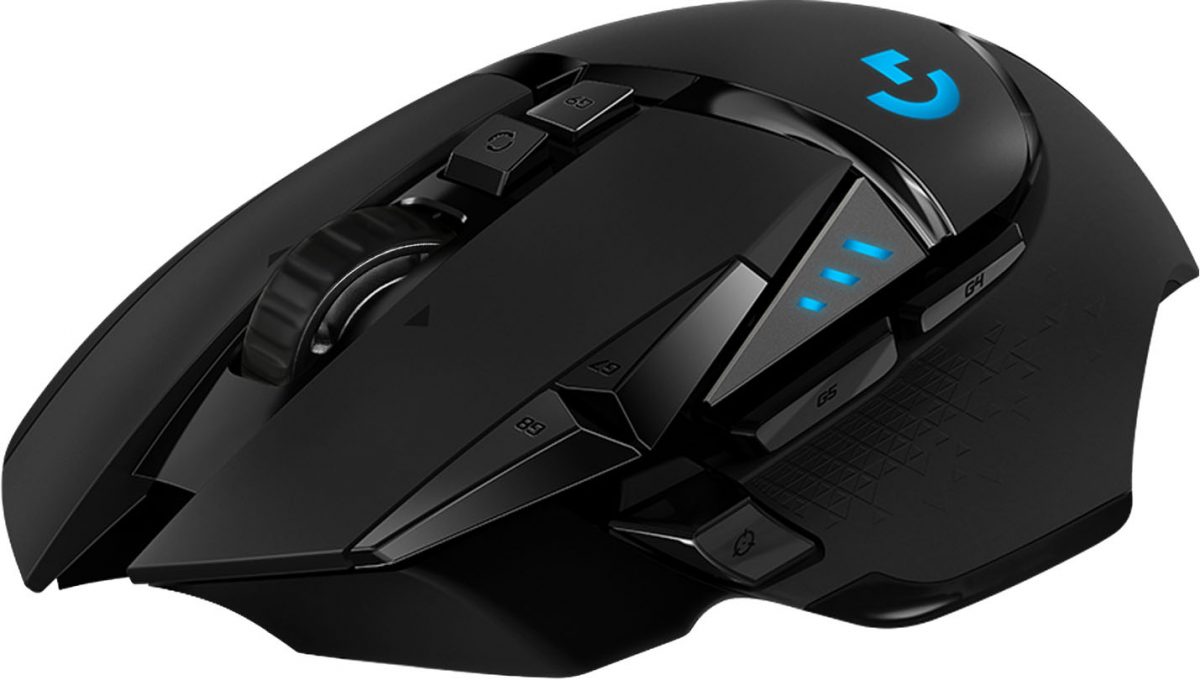
Summary
So, if you’re wondering why your Logitech mouse is lagging, here’s what you need to know! First, check if the batteries are low or if the mouse needs cleaning. Second, make sure your computer’s USB ports are working properly. Third, try updating your mouse drivers or using a different USB port. Fourth, if all else fails, contact Logitech support for further assistance. Remember, troubleshooting mouse lag can be simple, so don’t get too frustrated if it happens!
In conclusion, mouse lag can be caused by low batteries, dirty mouse, faulty USB ports, or outdated drivers. Following these troubleshooting steps can help you fix the issue and get your Logitech mouse working smoothly again. Remember, don’t stress too much, and reach out to Logitech if you need more help. Keep on gaming!

