

Do you ever wonder why your mouse cursor looks weird? It can be quite confusing, right? Well, you’re not alone! Many people have experienced this peculiar issue and are left scratching their heads. But fear not, because in this article, we’re going to unravel the mystery behind why your mouse cursor might be behaving strangely.
Picture this: you’re working on your computer, and suddenly, you notice that your mouse cursor is acting a bit funky. Maybe it’s lagging, or it’s moving erratically across the screen. You might even see strange shapes or colors instead of the usual arrow. It’s enough to make anyone wonder what on earth is going on!
So, what exactly causes your mouse cursor to look weird? There could be several factors at play, such as outdated drivers, conflicting software, or even a simple glitch. But don’t worry, we’re here to break it down for you and provide some helpful solutions to get your mouse cursor back to its normal, well-behaved self. So, let’s dive in and explore the reasons behind this peculiar phenomenon!
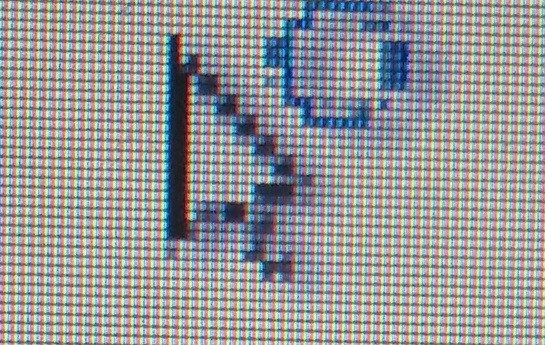
Why Does My Mouse Cursor Look Weird: Exploring the Possible Causes and Solutions
Have you ever experienced a moment where you looked at your computer screen and wondered why your mouse cursor is behaving strangely? If you’ve encountered this issue before, you’re not alone. Many users have encountered weird-looking mouse cursors and found themselves searching for answers. In this article, we will delve into the possible causes behind this issue and provide you with some solutions to get your cursor back to normal. Let’s explore!
1. Resolution and Display Settings
One possible reason why your mouse cursor may look weird is due to the resolution and display settings on your computer. Sometimes, these settings can cause the cursor to appear larger or smaller than usual, or even distorted. To fix this, you can try adjusting the resolution and display settings by right-clicking on your desktop and selecting “Display Settings” or “Screen Resolution.” From there, you can modify the settings to match your preference and see if it resolves the issue.
Another factor related to resolution and display is the mouse pointer size. In some cases, the mouse pointer size may have been accidentally changed, leading to a weird appearance. To adjust the mouse pointer size on Windows, go to the Control Panel, search for “Mouse” or “Pointers,” and navigate to the settings where you can modify the size. On Mac, you can find the mouse settings in the System Preferences under “Accessibility.” Resetting the size to the default setting should help restore the normal appearance of your cursor.
If the issue persists, it’s worth considering the possibility of outdated or incompatible display drivers. Updating the drivers can sometimes resolve compatibility issues and fix problems with the cursor’s appearance. To update the display drivers on Windows, you can go to the Device Manager, locate the “Display Adapters” category, right-click on your graphics driver, and select “Update driver.” On Mac, you can check for updates in the App Store or visit the manufacturer’s website to download the latest drivers.
2. Malware or Virus Infection
In some cases, a weird-looking mouse cursor can be a sign of a malware or virus infection on your computer. Malicious software can modify system settings, including the appearance of your cursor, as a way to disrupt your system or gain control over it. If you suspect that malware is causing the issue, it’s crucial to run a thorough scan using reliable antivirus software. Make sure your antivirus definitions are up to date and run a full system scan to detect and remove any potential threats. Afterward, restart your computer and check if the cursor has returned to its normal appearance.
Additionally, it’s always good practice to keep your operating system and other software up to date. Developers often release patches and updates to address vulnerabilities and fix bugs that could be exploited by malware. By regularly updating your software, you can minimize the risk of malware infections and ensure your cursor, along with your entire system, functions smoothly.
If you’re still experiencing cursor issues after scanning for malware and keeping your system updated, it might be necessary to consult with a professional technician or seek assistance from the manufacturer’s customer support. They can provide further guidance and help resolve the issue.
3. Incompatibility with Accessibility Features
Sometimes, the weird appearance of your mouse cursor can be linked to the accessibility features enabled on your computer. Certain features designed to assist users with visual impairments, such as high contrast themes or cursor enhancements, can alter the default appearance of the cursor. To check if accessibility features are causing the issue, go to the Control Panel or System Preferences, depending on your operating system, and navigate to the accessibility settings. Disable any cursor-related features and see if it resolves the problem.
It’s worth noting that some applications or third-party software may also modify the appearance of your cursor. If you recently installed new software or customized settings for a specific program, try disabling or uninstalling them to determine if they are the cause of the weird cursor appearance.
If all else fails, a simple reboot of your computer may do the trick. Sometimes, temporary glitches or conflicts can occur, leading to strange cursor appearances. Restarting your computer can help reset these issues and bring your cursor back to normal.
Other Possible Reasons for a Weird-Looking Mouse Cursor
Aside from the discussed causes, there could be other reasons why your mouse cursor appears weird. Here are a few more possibilities to consider:
1. Graphics Card Issues
A malfunctioning graphics card can sometimes cause abnormalities in the display, including the appearance of your cursor. If you suspect a graphics card issue, it may be necessary to troubleshoot or replace the card to resolve the problem. Consult with a professional or refer to the manufacturer’s guidelines for guidance.
2. Custom Cursors
If you have installed custom cursors or cursor themes, they may sometimes conflict with the default cursor settings and result in a weird appearance. Try reverting to the default cursor settings or uninstalling custom cursor packs to restore the normal appearance.
3. Hardware Problems
In rare cases, hardware problems with the mouse itself can cause strange cursor behavior. Ensure that your mouse is properly connected, clean, and functioning correctly. If necessary, try using a different mouse to see if the issue persists.
4. Operating System Updates
Operating system updates can sometimes introduce changes to the cursor’s appearance. If you recently updated your operating system, it’s possible that the weird-looking cursor is a new design or feature. Check the release notes or search online to see if there have been any cursor-related updates that could explain the change.
5. Cursor Themes
Some operating systems allow users to choose from a variety of cursor themes. It’s possible that you inadvertently switched to a different theme, resulting in an unconventional cursor appearance. Check the settings or preferences menu to select the appropriate cursor theme.
Conclusion: Resolve the Weird Cursor Appearance
If you find yourself staring at a strange-looking mouse cursor, there’s no need to panic. By considering the possible causes we’ve discussed, such as resolution and display settings, malware or virus infections, and compatibility with accessibility features, you can troubleshoot and resolve the issue. Remember to keep your system and software updated, use reputable antivirus software, and consult with professionals, if needed. With a little bit of investigation and problem-solving, you can restore your cursor to its normal, familiar look.
Key Takeaways: Why Does My Mouse Cursor Look Weird?
1. Your mouse cursor may look weird due to a graphic driver issue.
2. Adjusting the cursor size and speed settings can help fix the issue.
3. Malware or viruses can cause the mouse cursor to behave strangely.
4. Sometimes, a simple restart can resolve cursor-related problems.
5. Updating your operating system and mouse driver can also fix cursor issues.
Frequently Asked Questions
When using a computer, you may occasionally encounter issues with your mouse cursor that make it look strange or unusual. Here are some common questions and answers related to why your mouse cursor may appear weird:
1. Why is my mouse cursor moving erratically and jumping around?
If your mouse cursor is behaving erratically, it could be due to a few reasons. Firstly, check if there is any dirt, dust, or debris on your mouse’s optical sensor or trackball. Cleaning the sensor or trackball can help improve cursor movement. Additionally, make sure you are using your mouse on a smooth and flat surface, as uneven surfaces can interfere with its tracking. If the issue persists, try using a different mouse pad or surface to see if that resolves the problem. Finally, it’s also worthwhile to check if your mouse driver software is up to date, as outdated drivers can cause cursor-related issues.
If you are using a wireless mouse, another possibility is that the batteries are running low. When the batteries are dying, the cursor movement can become jumpy and unpredictable. Replace the batteries with fresh ones and see if the issue is resolved. If not, try repositioning the wireless receiver to ensure there are no obstructions interfering with the wireless signal.
2. Why is my mouse cursor turning into a spinning circle?
If your mouse cursor is constantly showing a spinning circle or hourglass symbol, it indicates that your computer is working on a task and is temporarily unable to respond to your commands. This could be due to a variety of reasons. If you recently opened a large file or are running resource-intensive software, it may take some time for the system to process the task, leading to the spinning cursor. In such cases, it’s best to wait patiently until the task completes. If the spinning cursor persists for an extended period or seems to occur randomly, it might be a sign of a software or hardware issue. Consider restarting your computer to see if that resolves the problem. If the issue persists, you may need to seek further technical assistance.
3. Why is my mouse cursor turning into a hand symbol?
When your mouse cursor changes into a hand symbol, it typically indicates that you are hovering over a clickable or interactive element such as a hyperlink, button, or scroll bar. The hand symbol is a visual cue to indicate that you can perform an action by clicking or interacting with the element. You can usually click to open a link, drag a scroll bar to navigate a webpage, or activate a button by clicking when the cursor turns into a hand symbol. This behavior is especially common when browsing the internet or using software that incorporates clickable elements.
If your mouse cursor is constantly showing the hand symbol even when you are not hovering over interactive elements, it could be due to a software-related issue. Restarting your computer or updating the mouse driver software may help resolve this problem. If the issue persists, consider checking for any third-party software or extensions that may be interfering with the normal cursor behavior.
4. Why is my mouse cursor getting larger or smaller?
If your mouse cursor suddenly changes in size and becomes larger or smaller, it may be a feature offered by your operating system or a specific software program. Some operating systems, like Windows, allow users to customize their mouse cursors, including size. You might have unintentionally activated a shortcut or setting that triggers a change in cursor size. To resize your cursor back to its original size or to a size you prefer, access the mouse settings in your computer’s control panel or settings menu. Look for options related to cursor size and adjust accordingly.
However, if your cursor size changes without any intentional action on your part and you are unable to revert it back to normal using the system settings, it could be a sign of a software-related or compatibility issue. Consider updating your operating system and mouse driver software to the latest versions to see if that resolves the problem. If the issue persists, reaching out to technical support for further assistance may be necessary.
5. Why is my mouse cursor showing strange colors or patterns?
If your mouse cursor is displaying unusual colors or patterns, it could be related to specific software or accessibility settings. Some software programs or operating systems provide options to customize the appearance of the mouse cursor, including color schemes and patterns. Check your computer’s control panel or settings menu for mouse-related options that allow customization. If you accidentally enabled a customized cursor theme or appearance, simply revert back to the default settings or choose a different visual style.
In some cases, unusual cursor colors or patterns may be a visual accessibility feature designed to improve visibility or assist users with visual impairments. These accessibility settings are typically customizable to suit individual needs. If you are unsure how to adjust these settings or if you believe the strange cursor appearance is not related to any intentional customization, consult your computer’s accessibility options or seek technical support for further assistance.
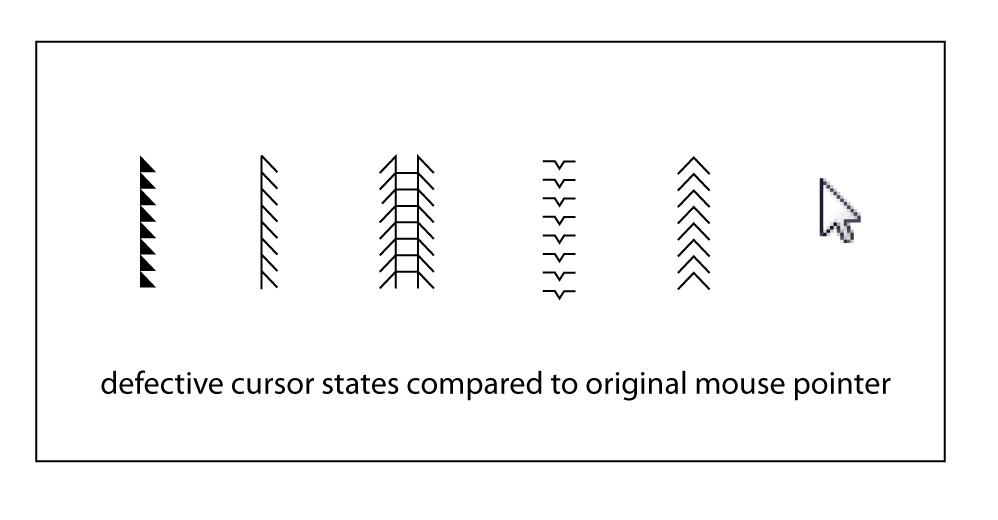
How to Fix Mouse Jumping issue in Windows 10
Summary
If your mouse cursor looks weird, there may be a few reasons why. First, check if your computer has any updates available. Sometimes, updating your system can fix the issue. Second, make sure your mouse is clean and free from dirt or debris. Give it a gentle wipe to see if that helps. Lastly, double-check your mouse settings to ensure they are configured correctly. Sometimes, changing the cursor size or style can make it look normal again.
Remember, if none of these steps work, it’s always a good idea to reach out to someone who knows more about computers, like a teacher or parent. They might be able to provide additional guidance and help you solve the problem.

